



When used well, JavaScript is an essential language when you want to optimise a PHP-based CMS like Joomla. For example, it is possible to build a calculator (BMI, quote estimator, etc.) in PHP, but integrating it into the CMS via JavaScript will avoid a full page reload or limit interaction to loading an Ajax data stream.
JavaScript is of course already used by the CMS core and by all kinds of extensions or features to produce image slideshows, article filters, or animation effects. On a large site, this accumulation of code can quickly turn a CMS into an unwieldy mess if it is poorly managed.
Since version 4, Joomla has improved JavaScript integration by introducing an asset manager to provide finer control over the loading of CSS and JavaScript files. Here is a brief but fairly technical introduction, useful for anyone wishing to combine their JavaScript skills with the flexibility, stability, and growth potential of a mature CMS like Joomla.
Globally integrating JavaScript and CSS with user.js and user.css
It is always possible to globally integrate JavaScript across the site by creating a user.js file at the location provided for your template in Joomla's media folder: /media/templates/site/cassiopeia/js/user.js, or a custom CSS file at /media/templates/site/cassiopeia/css/user.css. These files must be created manually, but their integration will be automatic. If you have a minified version, files with the suffixes user.min.css and user.min.js will take priority in production mode.
Integrating JavaScript into articles and modules
In a CMS, it is not advisable to integrate JavaScript code using the content editor, since the default settings automatically strip it out for security reasons. It can, however, easily be injected in a targeted way at the article and module level by a webmaster. You can use the dedicated module LM Custom, or create a code override, which has the advantage of allowing you to modify the HTML or PHP of the view. To do this, go to System > Templates, click on the name of the active template, then the Create Overrides tab and choose an element — component, module, plugin, or layout (part of the page layout) — to override. Clicking a link will automatically create an override of a PHP file that can then be edited in the templates/your_template/html folder. For example, clicking on the article view of the com_content component will duplicate the PHP template file responsible for rendering articles, making it possible to modify the content in HTML, PHP, or to add your own JavaScript code.
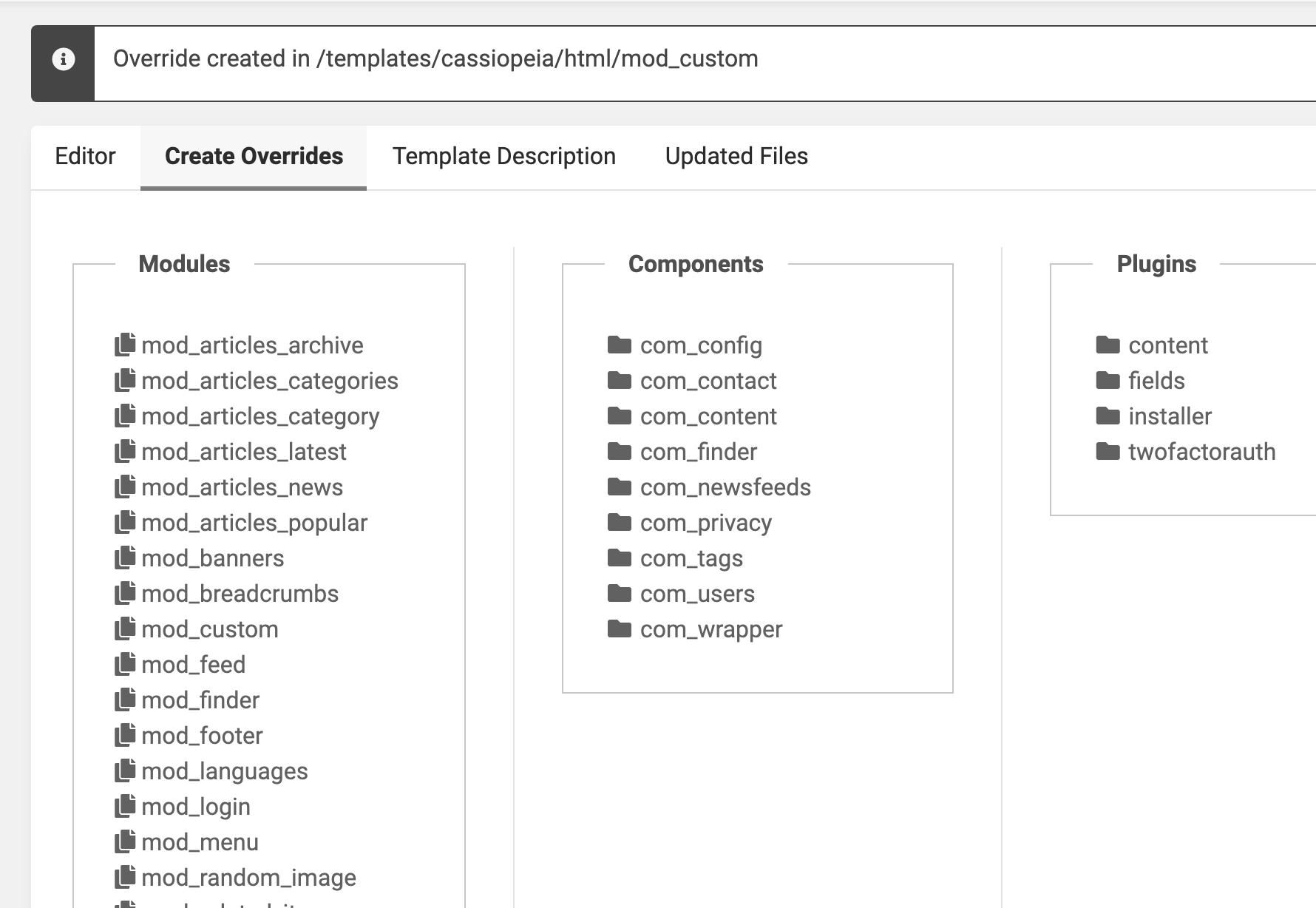
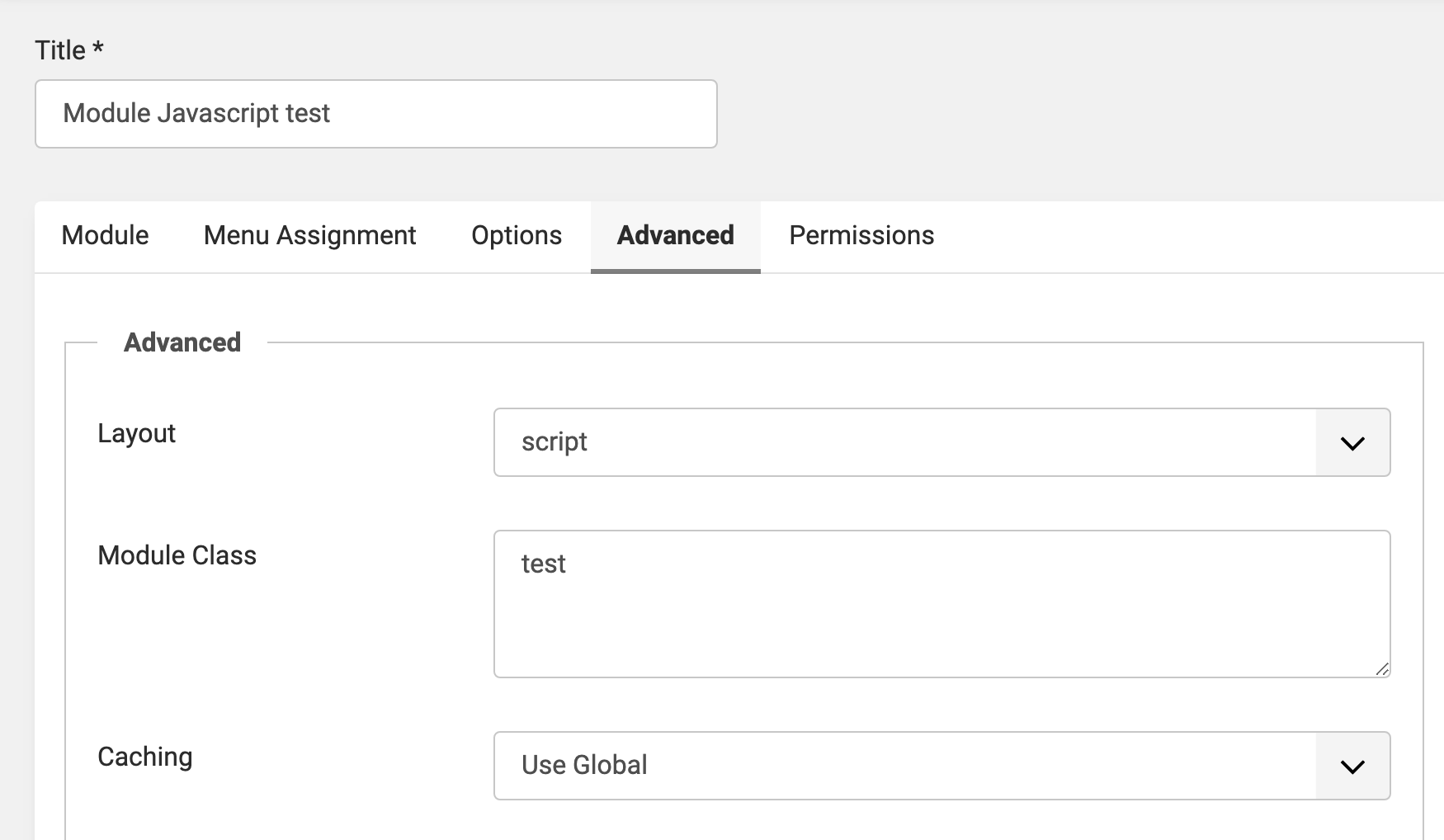
Here is a simplified example based on the custom HTML module, which has the advantage of being easily assignable to a specific page of the site via the Menu Assignment tab. The override will create a file here: templates/your_template/html/mod_custom/default.php. Rename default.php to script.php, then create an instance of the custom HTML module in the module manager, and finally in the Advanced > Module Layout tab, choose script — the name of the override just created. Don't forget to publish the module and assign it to a specific position on the page.
Integrating jQuery or a Bootstrap 5 component
Suppose you want to use the jQuery JavaScript library, which is no longer loaded by default in Joomla 4 but remains available in the framework for compatibility reasons. Place the following PHP code at the beginning of the PHP override you just created:
\Joomla\CMS\HTML\HTMLHelper::_('jquery.framework');
Joomla 4 ships with the Bootstrap 5 library. Each JavaScript component can be integrated separately as follows, specifying the component type in the first parameter and a selector in the second:
\Joomla\CMS\HTML\HTMLHelper::_('bootstrap.alert', '.alert');
Options can be configured with the optional third parameter (an array):
\Joomla\CMS\HTML\HTMLHelper::_('bootstrap.carousel', '.carousel', ['slide'=>'carousel']);
Integrating a script that depends on another
The JavaScript file must first be registered with the CMS asset manager, then explicitly called on the intended page, ensuring it will be positioned after the jQuery library it depends on (using the after position). A dependency can be declared on the fly in the asset manager as follows:
$wa = \Joomla\CMS\Factory::getApplication()->getDocument()->getWebAssetManager();
$wa->registerScript('script1', 'templates/cassiopeia/js/script1.js', ["position" => "after"], [], ["jquery"]);
It is possible to set a version number and optimise script loading with defer (or async) or module attributes:
$wa->registerScript('script2', 'templates/cassiopeia/js/script2.js', ['version'=>'5.2.0'], ["defer" => true]);
$wa->registerScript('script3', 'templates/cassiopeia/js/module.js', ['version'=>'3.3.1'], ["type" => "module"]);
The registered file must be called with the useScript method. Multiple files can be chained using this syntax:
$wa->useScript('script1')->useScript('script2');
Inline code can be called as follows, using array parameters to position it after the script that depends on jQuery (heredoc syntax is optional):
$customScript = <<<JS
jQuery(document).ready(function() {
console.log("Intégration d'un script JS");
});
JS;
$wa->addInlineScript($customScript, ['position' => 'after'], [], ['script1']);
To import a JS module:
$wa->addInlineScript($customScript, ["position" => "after"], ["type" => "module"], ["vanilla-script"]);
At any time, the state of the asset manager can be inspected with a simple:
var_dump($wa);
Passing PHP parameters to JavaScript
To pass PHP parameters into JavaScript code in the recommended way, use the following in PHP:
\Joomla\CMS\Factory::getDocument()->addScriptOptions(
  'context_name', // e.g. mod_custom
  [
    'param' => $param,
  ]
);
In JavaScript:
const param = Joomla.getOptions('context_name').param;
Integrating CSS rules
Inline code or a CSS file can be integrated in the same way:
$wa = \Joomla\CMS\Factory::getApplication()->getDocument()->getWebAssetManager();
$wa->registerStyle('customcss', 'templates/cassiopeia/css/custom.css');
$wa->useStyle('customcss');
$customStyle = <<addInlineStyle($customStyle);
Checking whether a resource exists in the asset manager
This very useful method allows you to confirm that a resource is properly loaded:
if ($wa->assetExists('script1', 'foobar')) {
  var_dump ('This file exists');
}
Removing a resource
To remove resources loaded in the asset manager, use the following methods:
// A specific JS script
$wa->disableScript('jquery-noconflict');
// A specific Bootstrap 5 script
$wa->disableScript('bootstrap.popover');
// A style
$wa->disableStyle('customcss');
Creating your own template
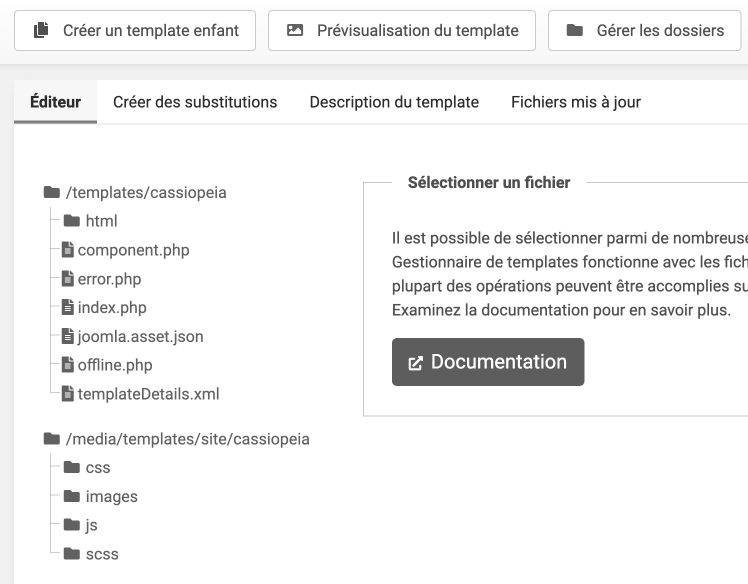
For optimal control over assets and HTML output, it is always possible to duplicate the Cassiopeia template under System > Site Templates in order to rename it. The base template is simple (4 PHP files) and can be updated without too much difficulty.
Since Joomla 4.1, it has been possible to create child templates in a manner similar to WordPress, but more simply — with a single button click from the template editor.
Using the joomla.asset.json file
Joomla recommends referencing assets directly in a joomla.asset.json file.
The joomla.asset.json file is autoloaded in a template or child template (media directory), but for a Joomla module it must be integrated manually as follows:
joomla.asset.json:
{
    "$schema": "https://developer.joomla.org/schemas/json-schema/web_assets.json",
    "name": "mod_nom",
    "version": "4.0.0",
    "description": "Joomla CMS",
    "license": "GPL-2.0+",
    "assets": [
    {
      "name": "nom-script",
      "description": "Le fichier qui contient le code Javascript.",
      "type": "script",
      "uri": "js/vanilla-marquee.min.js",
      "attributes" : {
        "defer": true,
      },
      "dependencies": [
        "core"
      ]
    }
}
In PHP:
…
$wa->getRegistry()->addRegistryFile(JPATH_ROOT . '/media/mod_mymodule/joomla.asset.json');
$wa->registerAndUseScript('nomscript');
The asset manager also supports including JavaScript as a Web Component. Please refer to the documentation below for more details.
Sources: Web Assets, Web Asset Management, Joomla Overrides, Bootstrap and Joomla 4