


Many people confuse a CMS content editor (also called an HTML editor or WYSIWYG editor) with a website creation tool. The CMS content editor allows writers with different technical levels to modify the articles of a website designed and maintained by a webmaster. Knowing how the HTML editor of a CMS works increases productivity when managing a professional site that may require handling hundreds of pages written by authors who are not web designers.
The user is then able to:
- create semantically clean HTML code that complies with W3C and accessibility standards.
- take more pleasure in their work by understanding the basics of HTML and CSS, giving them the ability to use advanced typographic or layout concepts.
- master the technical principles of SEO (search engine optimization) and website security.
- use portable code, regardless of the CMS platform used.
We will take the JCE content editor as an example, which is one of the most popular extensions of the Joomla CMS, but many other editors such as TinyMCE — from which JCE is derived — follow the same principles. Feel free to consult their documentation.
Working comfortably
It is useful to know the main keyboard shortcuts of your editor. On Mac, the shortcut cmd + shift + F activates the full‑screen editing mode, while cmd + F opens the search box (on PC replace cmd with ctrl).
- cmd + shift + F to enable/disable full‑screen mode
- To create a link, press cmd + K,
- cmd + 1 to create a level‑1 heading,
- cmd + 2 to create a level‑2 heading, etc.
- cmd + a (select all),
- cmd + z to undo the previous change,
- shift + return to insert a line break,
- alt + return to exit, for example, from nested block areas.
- ctrl + alt + z to repeat the previous action.
A small tip: use the Pro (paid) version of your editor to benefit from all features. JCE Pro offers color highlighting in the source code to clearly distinguish tags from text, visual tag folding (code folding), and Markdown syntax. It also provides a powerful media manager with image editing functions on the server and the ability to create different profiles depending on user privileges. File editing and uploading functions are very sensitive from a security standpoint in a CMS. Always make sure to update the extension so the developer can fix security vulnerabilities. The latest version 2.9.99.6 of JCE, for example, fixed a major security flaw.
You probably don’t need all the buttons in your editor. You can completely disable them in the component configuration or hide some of them so they only appear when needed by clicking the Additional Tools button.
Finally, make sure you know how to access your CMS publication history so you can revert changes if you made a mistake or accidentally deleted part of your text.
Format your code faster with Markdown syntax
JCE Pro is partially compatible with simplified Markdown syntax, a lightweight markup language developed in 2004 by blogger John Gruber and Aaron Swartz, also used on the GitHub development platform or with the Grav CMS. After enabling Markdown in the configuration settings (toolbar), you can format your text more naturally.
# creates a level‑one heading. ## creates a level‑two heading, etc. **bold text** _italic text_ `code snippet` * creates an unordered list item *1. creates an ordered list item 
JCE then converts the shortcode into proper HTML code. Knowing these shortcuts allows you to use a simplified interface with a minimum of distracting icons.
Clean the HTML structure of the code
The Paste with Styles button in JCE preserves stylistic attributes from Microsoft Word or a web page and automatically converts HTML tags. Paste as Plain Text, on the other hand, removes all original code. JCE offers many configuration settings in the copy‑paste plugin parameters to choose which code to keep or remove. It is recommended to eliminate unwanted attributes such as CSS classes and unnecessary span tags to work with clean HTML code. Copy‑paste is also available in the context menu activated by right‑clicking. Make sure the HTML semantics are preserved when pasting text, for example using the p (paragraph) element instead of div for normal text (also configurable).
You can drag and drop an entire static file in markdown (.md) or HTML format into the editor window. JCE will automatically convert and clean it.
Some tags such as script and iframe pose security issues for websites, which is why a secure CMS is configured to remove them by default. If they must be integrated directly into an article, you need to authorize their publication in the editor settings and in the CMS configuration (text filters).
Visualize the HTML code structure
The magnifying glass button in the editor enables/disables visualization of the HTML structure by drawing a frame around div, p, or ul (list), figure, etc. This is useful, for example, to check whether you are using a new paragraph or just a line break, or to clearly distinguish block elements from inline elements. This visualization can be enabled by default in JCE. It is also possible to enable/disable table cell borders by clicking the grid icon.

Clean CSS styles
Sometimes a heading appears in red while the rest of the headings at the same level are black. The reason is that a special style is attached to the tag, for example:
<h1 class="red-title">Heading 1</h1> or <h1 style="color:red;">Heading 1</h1>
Use the eraser tool to remove all styles attached to the tag.
Select the correct HTML element
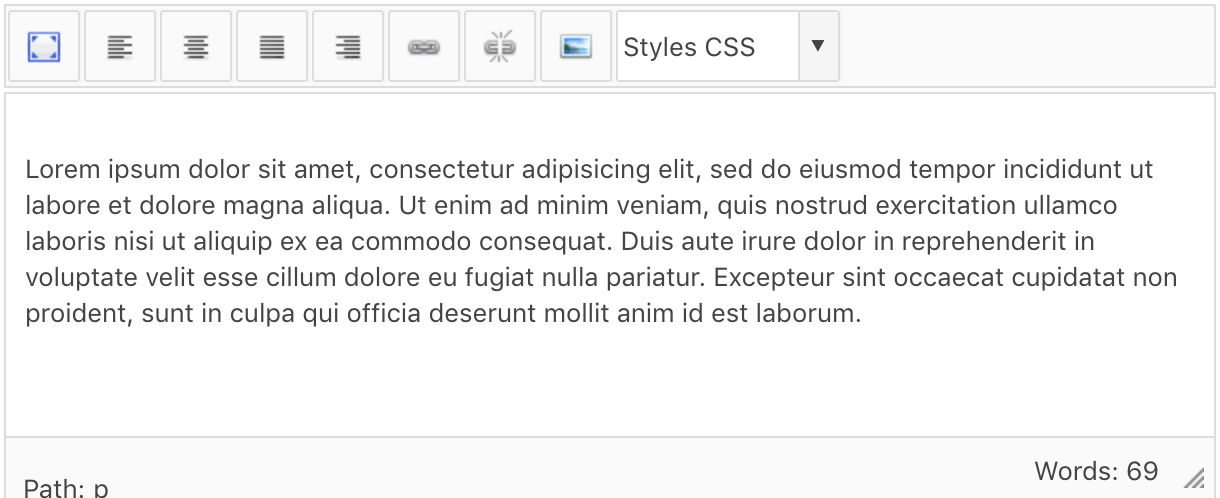
The nesting of HTML tags in an article can be quite confusing. For example, an image (img) may be inside a link (a), which is inside a paragraph (p), which is inside a division (div). This hierarchy is displayed at the bottom of the editor window. In our case, it would show:
Path: div >> p >> a >> img
Clicking a tag in the path selects the corresponding HTML element in the editor, allowing you to apply specific settings. In our example, if you want to modify a CSS class on the link only, click on a, then cmd + K, and in the Advanced tab you can modify the class name.
Improve the user experience
One issue users encounter is the mismatch between editor styles and the final result. Most editors like JCE allow you to create a stylesheet dedicated to this aspect in a file named editor.css, so you can keep identical colors without sacrificing readability. It can also be useful to mark the border of certain blocks to ensure HTML integrity after copy‑paste.
A writer may sometimes need to reuse layouts or HTML snippets. The editor supports both cases by saving predefined templates in the editor’s template manager. The icon is not always visible by default. Make sure to enable this feature in the plugin settings.
A complex HTML structure can be locked to prevent a writer from accidentally deleting it. For example, JCE allows adding a special class to any element:
<div class="mceNonEditable">…</div>
Finally, during site design, it is important to think carefully about content modularity by creating separate articles and modules/widgets/custom fields for complex layouts. Be careful to consider indexing if you use an internal search engine.
In summary, is learning HTML still useful?
Some will tell you no, that with modern visual editors or AIs it is no longer necessary. The problem is that very good visual editors already existed 20 years ago with WYSIWYG software like Macromedia Dreamweaver (what you see is what you get — in other words, you see on screen the result of what you type). But mixing layout and content in the same document is not a sustainable solution when a site has dozens of pages. HTML/CSS code evolves and becomes more complex regularly. Because of the nature of the web and the cascading behavior of stylesheets, it is better to have some basic HTML/CSS knowledge to understand what happens behind the scenes of your web page, especially in a professional context where every detail matters. To go further, you can acquire basic knowledge on beginner‑oriented sites such as W3schools or seek help from trainers.