



Google is a very powerful tool and, in the vast majority of cases, there is no need to look far — we quickly obtain the results we are looking for. But sometimes a more thorough search is necessary.
For example:
- a student needs to write a dissertation,
- a teacher needs to prepare a lesson,
- a journalist needs to cover an in-depth topic,
- a developer needs to learn a new framework,
- a manager is tasked with writing a report,
- etc.
Everyone has experienced this feeling at least once… spending hours searching online only to wish they had gone out for a breath of fresh air instead! Of course, artificial intelligence tools such as ChatGPT, Grok, or Gemini are increasingly used, but their biases, hallucinations, and lack of transparency regarding sources mean they cannot replace traditional, independent research on the internet. Here are a few approaches to make the latter more effective:
- Prepare your research,
- Define your query as precisely as possible,
- Explore different search tools,
- Draw on the knowledge of other users,
- Set up an information monitoring system,
- Process, verify, and organise the information.
1) Prepare your research
Before you start typing keywords into a search engine, take a moment to review any notes you may have taken on a similar topic during a previous search. They will help you refresh your memory and, as a result, better formulate the keywords you are going to use.
You might ask: but how do you retrieve notes from a search carried out months or even years ago? Are the walls of your office covered in Post-it notes?
One limited solution is to use Google's Web History feature. After registering with Google to obtain a free account, every search you perform is stored by the search engine and can be consulted later by logging in. In addition, Google will use this database to present you with similar results in future searches. Unfortunately, this solution can raise privacy concerns and, more importantly, Google's filter risks causing you to miss interesting results that fall outside your usual search habits. This is the so-called filter bubble phenomenon. The best approach is still to build your own "knowledge base". Everyone has their own preferences in this area. It could be a specialist piece of software installed on your computer such as DEVONThink Pro or OmniOutliner, a database application, or more simply saving Word documents in a logical folder and subfolder structure and using the computer's search engine to retrieve them. DEVONthink Pro for Mac has the advantage of making it easy to add a link or web page to the database and convert it into a web archive that is indexable by the software. Furthermore, an artificial intelligence system automatically classifies new information, which is very convenient when managing tens of thousands of documents.
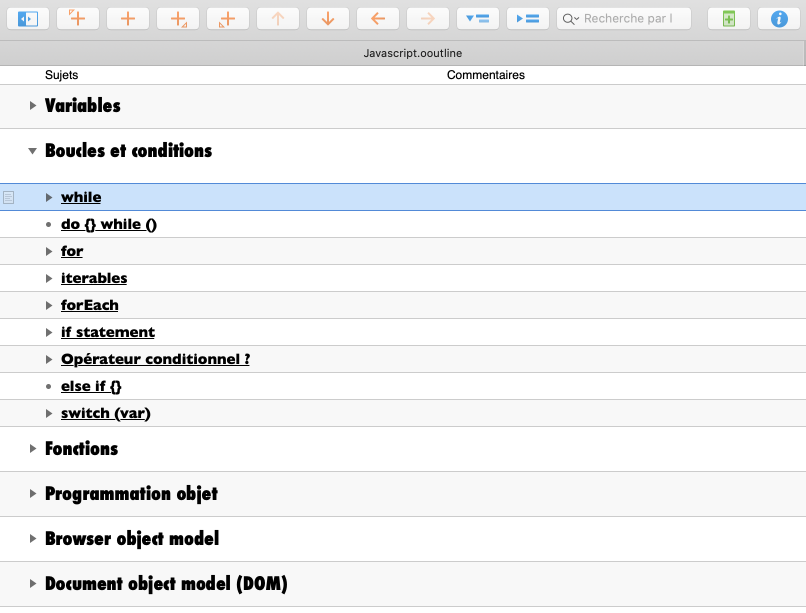
Mobile users can access their knowledge base with the DEVONthink To Go app or through an online service such as Evernote. As for "geeks", they will use their own open source CMS (Content Management System) — Joomla, WordPress, Drupal, or Media Wiki, the engine behind Wikipedia. Hosting providers such as Infomaniak allow these applications to be installed automatically on a server. A CMS is a collaborative tool, so this solution makes it possible to share your knowledge base with other users who can enrich it in turn.
2) Define your query as precisely as possible
Socio-professional background, marketing, religious or political affiliation, age, and even gender are all criteria that can influence the vocabulary or jargon used by the authors of the page you are searching for. Try to picture that page before carrying out a search. Consider the telling example of someone experiencing a bug on their computer. The most effective method is to use the error message appearing on the screen as the search keywords. Although often cryptic, error messages are reproduced on discussion forums by users who have encountered the same type of problem. Adding extra keywords such as the name of the software or the OS further narrows down the results. In general, using examples in your queries improves results in both current search engines and AI tools. Do not hesitate to explore the advanced search features of search engines either.
3) Explore different search tools
Search engines such as Google or Bing automatically index the content of web pages and allow users to search by keywords. Results are displayed as ranked lists. For important searches, it is essential to use several engines. Indeed, a search engine like Google tends not to index all the documents it encounters in order to avoid duplicates, but also increasingly on the basis of qualitative criteria it determines from their content. Search engines are very simple to use, but it is worthwhile learning the subtleties of their query syntax to increase their effectiveness.
There are search engines specialising in many fields: blogs, images, videos, or news, as well as privacy-respecting engines such as DuckDuckGo. The latter offers search shortcuts called "Bangs" pointing to many popular sites such as Wikipedia or Amazon. The European search engine Qwant, which positions itself in the same market, has developed its own index and was chosen by the European Parliament to replace Google on its computers.
Metasearch engines are specialist tools (e.g. DEVONAgent) capable of aggregating results from several search engines such as Google, Yahoo, or Bing simultaneously.
It is also possible to use start pages presenting the search fields of various engines.
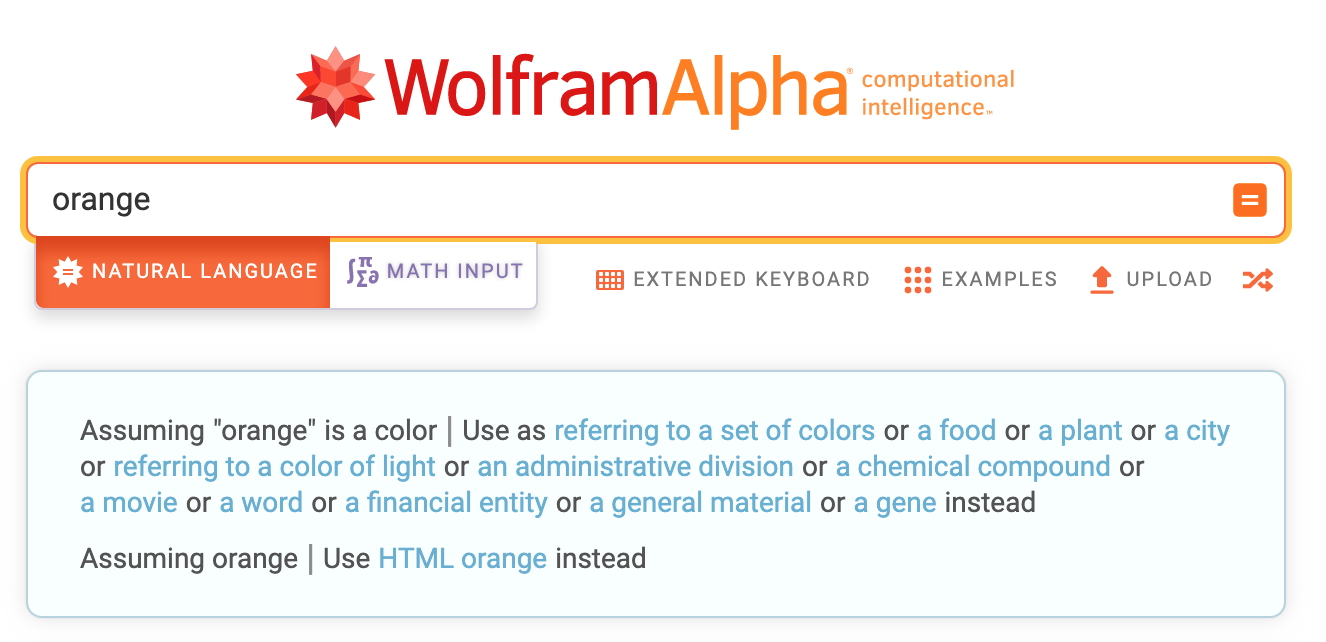
Faced with the abundance of available results, some search engines such as WolframAlpha attempt to do some of the work for you by grouping results into thematic folders. Specialists call this "clustering". For example, a search for "orange" distinguishes between the delicious fruit, the well-known mobile phone brand, the Californian county, and the notoriously toxic chemical defoliant used in Vietnam.
In directories, sites are categorised by human editors — rather like a librarian cataloguing books in a library. Unlike search engines, directories do not analyse the content of pages; they typically record only the site name, a link to its homepage, and a short description. The large volunteer-driven Dmoz directory has closed, but a team of contributors has taken up the torch and launched the Curlie directory.

4) Draw on the knowledge of other users
The shortcomings of search engines in genuinely understanding human needs have given rise to many initiatives in so-called "social search", which relies on knowledge sharing with other users.
The sites that were very popular in the 2000s allowing users to create freely accessible online bookmark lists have fallen into disuse (del.icio.us) or have become more specialised in news (digg).
Google still allows users to create personalised versions of its search engine. This is called Programmable Search Engine (formerly Google Custom Search). Here is how it works: after creating a free account, you tell Google a list of sites to search exclusively or as a priority. Tags can be defined for each site to refine the search. You can then invite other users to help improve your search engine.
Another solution is to seek help in discussion forums such as Google Groups, Reddit, Gitter, or Stack Overflow in the IT field. Much depends on the expertise of the users who read your message, but do not expect an answer without a precise question. Some regulars welcome beginners warmly and are happy to provide lengthy explanations with infinite patience. Others act like gatekeepers and will not hesitate to give you a dressing-down for not having read the 300-page protocol where the answer lies, or will go off on tangents unrelated to your question. As for trolls, their purpose is to derail conversations and spread misinformation. Worth mentioning also is the metasearch engine Boardreader, which will help you navigate these virtual communities like a silver surfer.
Finally, social networks such as Facebook, LinkedIn, or X allow you to gradually build a network of specialists who can occasionally provide help on a given subject. Given the public nature of these networks, experts and companies are often happy to answer questions addressed to them in order to demonstrate their expertise or enhance their customer service. This is particularly true of airlines, which are very active on X (formerly Twitter).
5. Setting up an information monitoring system
To say the least, information on the internet is constantly changing. Many sites publish RSS feeds that allow users to be notified of updates. The advantage of an RSS feed over subscribing to an email newsletter or a social network is, of course, anonymity. A single click connects your RSS reader to an information stream without disclosing any personal data other than your IP address, which is most often dynamic. If a feed no longer meets your needs, it is just as easy to remove it.
The Netvibes service used to give everyone a workspace accessible from any computer or mobile device for managing RSS feeds, checking emails, monitoring Twitter searches, and even taking notes — very handy when gathering information on a topic. Although this service no longer exists, other applications can read RSS feeds, such as these two reliable Mac options: DEVONthink Pro and NetNewsWire, the cross-platform RSS Guard, or the online service Inoreader.
This article presents methods for obtaining RSS feeds from the most common social networks and CMSs. There are also services that refresh an RSS feed when a monitored page is modified or if a certain error code (e.g. 404) is generated. In some cases, a simple link in a note is perfectly adequate and serves as a reminder to regularly revisit an information source.
6. Processing, verifying, and organising information effectively
Your information search is now complete and a question arises: how do you make the best use of all this data? It goes without saying that information must be verified and approached with a critical mind. This article deals only with organisation, so here are a few techniques that make this work easier. For example, the note-taking system created by Walter Pauk at Cornell University, or the mind map, formalised by British psychologist Tony Buzan.
The "Cornell" system involves dividing your page into three areas. The main area for notes, a column in the left margin to highlight key points, and a section at the bottom of the page for a summary. This method encourages the note-taker to focus on what is essential and can be applied just as easily with handwritten notes as with a simple word processor. Here is a method for creating your own Word template and here is a very good explanation of how to proceed in general. It is also possible to find ready-made templates in the excellent DEVONthink Pro, or via Google, for example by running the following search:
Cornell notes template filetype:doc
Those with a more visual mind may prefer the mind mapping method, which associates keywords and images in the form of a tree diagram. This type of diagram can be used for conventional note-taking as well as a creativity method during a brainstorming session, for example. The advantage is that it structures information hierarchically and allows new branches to be added at any time, bringing new ideas or clarifying a concept. You will find a summary of this article in the form of a mind map below.
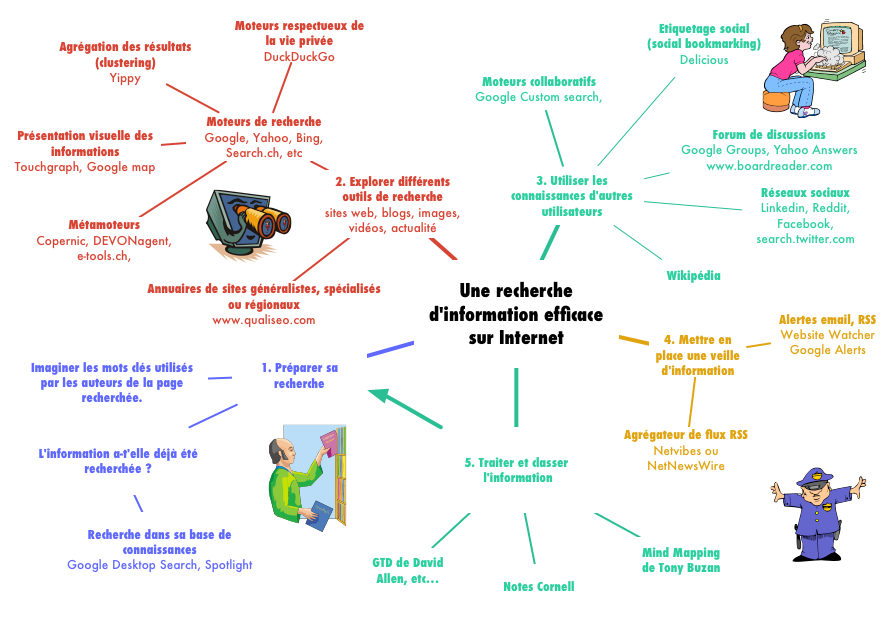
There are many mind mapping applications, but you can start creating mind maps straight away on the Mindmeister website, which offers a free standard plan. The site also allows you to browse maps created by other users, which is very instructive — there are maps on every subject imaginable. I would also highlight two Mac applications I am particularly fond of: Freeform, which comes pre-installed free of charge on modern Macs, and OmniGraffle, which I used to create the mind map above (paid).
Ultimately, everyone will choose the solution best suited to their needs. My personal preference for day-to-day use goes to OmniOutliner, which lets me create multi-column lists to quickly organise concepts and information, and to DEVONthink Profor managing large volumes of information.